8.9  Real-time simulation of a pendulum

PyQTGraph is a popular library for creating real-time data visualizations in Python. Below is an example code that simulates a simple pendulum and visualizes its motion in real-time using PyQTGraph.

Pendulum Simulation

Complete Code Example

Below is the complete code for the simulation. Please note that you need to run this as a standalone Python script.

Code
import numpy as np
import pyqtgraph as pg
from pyqtgraph.Qt import QtCore, QtWidgets

# Install pyqtgraph and PyQt6 if not already installed:
# uv pip install pyqtgraph PyQt6

# Enable anti-aliasing for smoother graphics
pg.setConfigOptions(antialias=True)

# === Physics Constants ===
g = 9.82  # Gravity (m/s^2)
m = 1.0   # Mass of pendulum bob (kg)

# === Initial Parameters ===
INITIAL_THETA = 45 * np.pi / 180  # Starting angle (radians)
INITIAL_OMEGA = 0.0                # Starting angular velocity
INITIAL_L = 1.0                    # Starting length (meters)
INITIAL_C = 0.5                    # Starting damping coefficient

# === Simulation Variables ===
theta = INITIAL_THETA
omega = INITIAL_OMEGA
L = INITIAL_L
c = INITIAL_C
t = 0.0
dt = 1/60  # Time step (60 fps)

# === Energy Data Storage ===
BUFFER_SIZE = 1000
time_data = np.full(BUFFER_SIZE, np.nan)
ke_data = np.full(BUFFER_SIZE, np.nan)
pe_data = np.full(BUFFER_SIZE, np.nan)
data_index = 0

# === Create Application ===
app = pg.mkQApp()

# === Create Main Window ===
win = QtWidgets.QMainWindow()
win.setWindowTitle('PyQtGraph Pendulum Simulation (Simple Version)')

central_widget = QtWidgets.QWidget()
win.setCentralWidget(central_widget)
layout = QtWidgets.QVBoxLayout()
central_widget.setLayout(layout)

# === Create Pendulum Plot ===
plot_widget = pg.PlotWidget()
layout.addWidget(plot_widget)
plot_widget.setBackground('w')
plot_item = plot_widget.getPlotItem()
plot_item.setTitle("Pendulum Simulation")
plot_item.setLabel('bottom', 'X Position (m)')
plot_item.setLabel('left', 'Y Position (m)')
plot_item.setXRange(-2.2, 2.2)
plot_item.setYRange(-2.2, 2.2)
plot_item.setAspectLocked(True)
plot_item.showGrid(x=True, y=True)

# Create pendulum visual elements
pendulum_line = plot_item.plot(pen=pg.mkPen('k', width=5))
pendulum_bob = pg.ScatterPlotItem(size=20, pen=pg.mkPen(None), brush=pg.mkBrush(255, 0, 0))
plot_item.addItem(pendulum_bob)

# === Create Energy Plot ===
energy_plot_widget = pg.PlotWidget()
layout.addWidget(energy_plot_widget)
energy_plot_item = energy_plot_widget.getPlotItem()
energy_plot_item.setTitle("Kinetic and Potential Energy")
energy_plot_item.setLabel('bottom', 'Time (s)')
energy_plot_item.setLabel('left', 'Energy (J)')
energy_plot_item.addLegend()

ke_plot = energy_plot_item.plot(pen=pg.mkPen('b', width=2), name='Kinetic Energy')
pe_plot = energy_plot_item.plot(pen=pg.mkPen('r', width=2), name='Potential Energy')

# === Create Info Label ===
label_widget = pg.GraphicsLayoutWidget()
label_widget.setFixedHeight(120)
param_label = pg.LabelItem(justify='left')
label_widget.addItem(param_label, row=0, col=0)
layout.addWidget(label_widget)

# === Create Length Slider ===
length_container = QtWidgets.QWidget()
length_layout = QtWidgets.QHBoxLayout(length_container)
length_layout.setContentsMargins(0, 0, 0, 0)

length_label_prefix = QtWidgets.QLabel("Length (L):")
length_layout.addWidget(length_label_prefix)

length_slider = QtWidgets.QSlider(QtCore.Qt.Orientation.Horizontal)
length_slider.setRange(10, 200)
length_slider.setValue(int(INITIAL_L * 100))
length_slider.setTickPosition(QtWidgets.QSlider.TickPosition.TicksBelow)
length_slider.setTickInterval(25)
length_layout.addWidget(length_slider)

length_value_label = QtWidgets.QLabel(f"{INITIAL_L:.1f} m")
length_layout.addWidget(length_value_label)

layout.addWidget(length_container)

# === Create Damping Slider ===
damping_container = QtWidgets.QWidget()
damping_layout = QtWidgets.QHBoxLayout(damping_container)
damping_layout.setContentsMargins(0, 0, 0, 0)

damping_label_prefix = QtWidgets.QLabel("Damping (c):")
damping_layout.addWidget(damping_label_prefix)

damping_slider = QtWidgets.QSlider(QtCore.Qt.Orientation.Horizontal)
damping_slider.setRange(0, 100)
damping_slider.setValue(int(INITIAL_C * 100))
damping_slider.setTickPosition(QtWidgets.QSlider.TickPosition.TicksBelow)
damping_slider.setTickInterval(10)
damping_layout.addWidget(damping_slider)

damping_value_label = QtWidgets.QLabel(f"{INITIAL_C:.2f}")
damping_layout.addWidget(damping_value_label)

layout.addWidget(damping_container)


# === FUNCTIONS ===

def update_visuals():
    """Update the pendulum graphics and info label"""
    global theta, omega, t, L, c

    # Calculate pendulum bob position
    P = L * np.array([np.cos(theta), -np.sin(theta)])
    pendulum_line.setData([0, P[0]], [0, P[1]])
    pendulum_bob.setData([P[0]], [P[1]])

    # Update info label
    label_text = f"""
    <table>
        <tr><td>Time: </td><td>{t:.1f} s</td></tr>
        <tr><td>Angle: </td><td>{np.degrees(theta):.1f} &deg;</td></tr>
        <tr><td>Omega: </td><td>{np.degrees(omega):.1f} &deg;/s</td></tr>
        <tr><td>Length (L): </td><td>{L:.1f} m</td></tr>
        <tr><td>Damping (c): </td><td>{c:.2f}</td></tr>
    </table>
    """
    param_label.setText(label_text)
    plot_item.setTitle(f'Time: {t:.1f} s')


def reset_simulation():
    """Reset the simulation to initial conditions"""
    global theta, omega, t, time_data, ke_data, pe_data, data_index

    print(f"Reset! Time: {t:.1f} s, Angle: {np.degrees(theta):.1f} degrees")

    theta = INITIAL_THETA
    omega = INITIAL_OMEGA
    t = 0.0

    # Clear energy data
    time_data.fill(np.nan)
    ke_data.fill(np.nan)
    pe_data.fill(np.nan)
    data_index = 0

    ke_plot.setData([], [])
    pe_plot.setData([], [])

    update_visuals()


def pause_simulation():
    """Pause or resume the simulation"""
    if timer.isActive():
        timer.stop()
        print("Simulation paused.")
    else:
        timer.start(int(dt * 1000))
        print("Simulation resumed.")


def update_length(slider_value):
    """Update pendulum length from slider"""
    global L
    L = slider_value / 100.0
    length_value_label.setText(f"{L:.1f} m")
    update_visuals()


def update_damping(slider_value):
    """Update damping coefficient from slider"""
    global c
    c = slider_value / 100.0
    damping_value_label.setText(f"{c:.2f}")
    update_visuals()


def handle_mouse_click(event):
    """Handle mouse clicks to set pendulum position"""
    global theta, omega, t, time_data, ke_data, pe_data, data_index

    if event.button() == QtCore.Qt.MouseButton.LeftButton:
        mouse_point = plot_item.vb.mapSceneToView(event.scenePos())
        x_mouse = mouse_point.x()
        y_mouse = mouse_point.y()

        if x_mouse == 0 and y_mouse == 0:
            return

        # Calculate new angle from mouse position
        theta = np.arctan2(-y_mouse, x_mouse)
        omega = 0.0
        t = 0.0

        # Clear energy data
        time_data.fill(np.nan)
        ke_data.fill(np.nan)
        pe_data.fill(np.nan)
        data_index = 0

        ke_plot.setData([], [])
        pe_plot.setData([], [])

        update_visuals()
        event.accept()
    else:
        event.ignore()


def handle_key_press(event):
    """Handle keyboard input"""
    if event.key() == QtCore.Qt.Key.Key_Return:
        reset_simulation()
    elif event.key() == QtCore.Qt.Key.Key_Space:
        pause_simulation()


def pendulum_step():
    """Update physics simulation one time step"""
    global theta, omega, t, data_index

    # Update time
    t += dt

    # Update angular velocity and angle
    omega += (g / L) * np.cos(theta) * dt + c/(m*L**2) * (-omega) * dt
    theta += omega * dt

    # Calculate energies
    v = L * omega
    KE = 0.5 * m * v**2
    PE = m * g * L * (1 - np.sin(theta))

    # Store data in circular buffer
    time_data[data_index] = t
    ke_data[data_index] = KE
    pe_data[data_index] = PE
    data_index = (data_index + 1) % BUFFER_SIZE

    # Update energy plots
    if np.isnan(time_data[0]):  # Buffer not full yet
        plot_time = time_data[:data_index]
        plot_ke = ke_data[:data_index]
        plot_pe = pe_data[:data_index]
    else:  # Buffer is full, handle wrap-around
        plot_time = np.concatenate((time_data[data_index:], time_data[:data_index]))
        plot_ke = np.concatenate((ke_data[data_index:], ke_data[:data_index]))
        plot_pe = np.concatenate((pe_data[data_index:], pe_data[:data_index]))

    ke_plot.setData(plot_time, plot_ke)
    pe_plot.setData(plot_time, plot_pe)

    update_visuals()


# === Connect Events ===
length_slider.valueChanged.connect(update_length)
damping_slider.valueChanged.connect(update_damping)
plot_item.scene().sigMouseClicked.connect(handle_mouse_click)
win.keyPressEvent = handle_key_press

# === Create Timer for Animation ===
timer = QtCore.QTimer()
timer.timeout.connect(pendulum_step)
timer.start(int(dt * 1000))

# === Initialize and Show ===
reset_simulation()
win.show()

# === Run Application ===
if __name__ == '__main__':
    print("Controls:")
    print("  - Click to set pendulum position")
    print("  - SPACE to pause/resume")
    print("  - ENTER to reset")
    print("  - Sliders to adjust length and damping")
    app.exec()
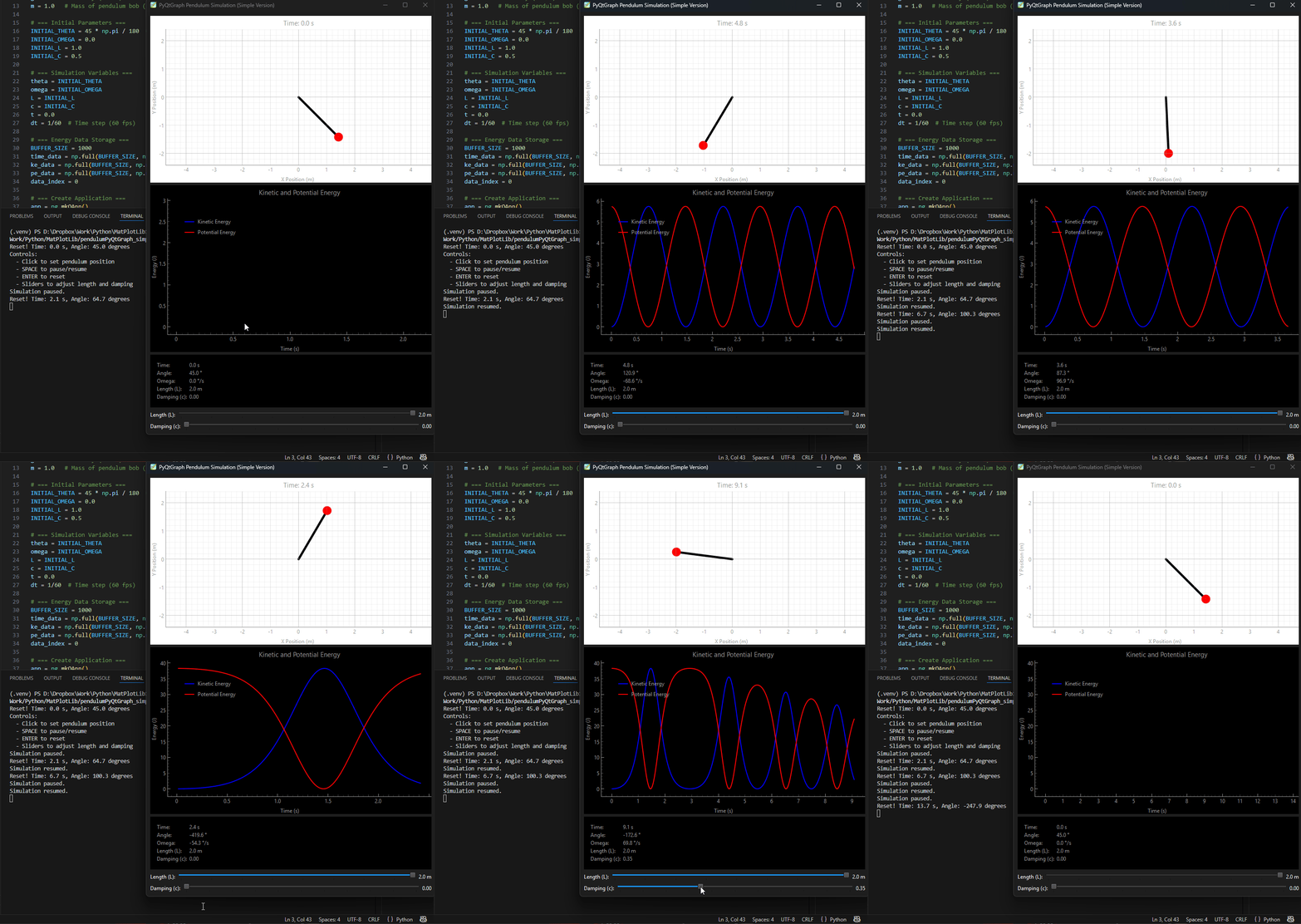
Code explanation

Code
import numpy as np
import pyqtgraph as pg
from pyqtgraph.Qt import QtCore, QtWidgets

Install pyqtgraph and PyQt6 if not already installed:

uv pip install pyqtgraph PyQt6

What is PyQt6 and pyqtgraph?

Before we dive into the code, let’s understand the tools we’re using:

PyQt6 is a Python binding for the Qt framework. Qt is a powerful toolkit for creating graphical user interfaces (GUIs). With PyQt6, you can create windows, buttons, sliders, and other interactive elements that users can click and interact with.

pyqtgraph is a library built on top of PyQt that specializes in creating fast, interactive plots and visualizations. It’s perfect for real-time data visualization, like our pendulum simulation where we need to update the display many times per second.

Think of it this way:

  • PyQt6 provides the window, buttons, and sliders
  • pyqtgraph provides the plotting capabilities to draw the pendulum and energy graphs
  • Together, they create an interactive simulation

Building the Simulation Step by Step

We’ll build this simulation incrementally, starting simple and adding features one at a time:

  1. Step 1: Create the basic pendulum visualization
  2. Step 2: Add the physics simulation
  3. Step 3: Add keyboard controls
  4. Step 4: Add mouse interaction
  5. Step 5: Add sliders for parameters
  6. Step 6: Add energy graphs

Let’s start!

Step 1: Creating the Basic Pendulum Visualization

Every PyQt application needs these fundamental components:

  1. An application object - This manages the overall program
  2. A window - The main container for your interface
  3. Widgets - The visual elements inside the window

Let’s see how this works:

Code
# Create the application object
app = pg.mkQApp()

# Create the main window
win = QtWidgets.QMainWindow()
win.setWindowTitle('Pendulum Simulation')

# Create a central widget to hold everything
central_widget = QtWidgets.QWidget()
win.setCentralWidget(central_widget)

# Create a layout to organize widgets vertically
layout = QtWidgets.QVBoxLayout()
central_widget.setLayout(layout)

Understanding this code:

  • pg.mkQApp() - Creates the application object. Think of this as starting your program.
  • QtWidgets.QMainWindow() - Creates the main window that will appear on your screen.
  • setWindowTitle() - Sets the text that appears in the window’s title bar.
  • QWidget() - A generic container widget that will hold our other elements.
  • setCentralWidget() - Every QMainWindow needs a central widget. This is where your content goes.
  • QVBoxLayout() - A layout manager that arranges widgets vertically (one on top of another). The “V” stands for “Vertical”.

Now let’s create the plot where the pendulum will be displayed:

Code
# Create a plot widget
plot_widget = pg.PlotWidget()
layout.addWidget(plot_widget)

# Configure the plot appearance
plot_widget.setBackground('w')  # 'w' = white background
plot_item = plot_widget.getPlotItem()
plot_item.setTitle("Pendulum Simulation")
plot_item.setLabel('bottom', 'X Position (m)')
plot_item.setLabel('left', 'Y Position (m)')
plot_item.setXRange(-2.2, 2.2)  # Set the x-axis range
plot_item.setYRange(-2.2, 2.2)  # Set the y-axis range
plot_item.setAspectLocked(True)  # Keep x and y scales equal (circle stays circular)
plot_item.showGrid(x=True, y=True)  # Show grid lines

Understanding PlotWidget:

  • PlotWidget() - Creates a widget specifically for plotting data. This is from pyqtgraph.
  • layout.addWidget() - Adds the plot widget to our vertical layout.
  • getPlotItem() - Gets the actual plot object that we can configure.
  • setAspectLocked(True) - Important! This ensures that 1 unit on the x-axis equals 1 unit on the y-axis. Without this, the pendulum’s circular motion would look stretched.

Now let’s draw the pendulum itself. A pendulum has two visual parts:

  1. A line from the pivot point (0, 0) to the bob
  2. A circle representing the bob (the mass at the end)
Code
# Create the pendulum line
pendulum_line = plot_item.plot(pen=pg.mkPen('k', width=5))

# Create the pendulum bob (the circle at the end)
pendulum_bob = pg.ScatterPlotItem(
    size=20,                    # Size of the circle
    pen=pg.mkPen(None),        # No outline
    brush=pg.mkBrush(255, 0, 0) # Red fill (RGB: Red=255, Green=0, Blue=0)
)
plot_item.addItem(pendulum_bob)

Understanding the pendulum graphics:

  • plot_item.plot() - Creates a line plot. The pen parameter controls how the line looks.
  • pg.mkPen('k', width=5) - Makes a black pen (‘k’ = black) with width 5 pixels.
  • ScatterPlotItem() - Creates scatter points (dots/circles) that can be positioned anywhere.
  • pen=pg.mkPen(None) - No outline around the circle.
  • brush=pg.mkBrush(255, 0, 0) - Fills the circle with red color using RGB values.
  • addItem() - Adds the scatter plot item to our plot.

Step 2: Adding the Physics Simulation

To animate the pendulum, we need to:

  1. Store the pendulum’s state (angle, angular velocity)
  2. Update the physics each frame
  3. Redraw the pendulum at its new position

First, let’s set up the initial state:

Code
# Physics constants (you'll learn these in your mechanics course!)
g = 9.82  # Gravity acceleration (m/s^2)
m = 1.0   # Mass of pendulum bob (kg)

# Initial state
theta = 45 * np.pi / 180  # Starting angle: 45 degrees converted to radians
omega = 0.0                # Angular velocity: starts from rest
L = 1.0                    # Length of pendulum (meters)
c = 0.5                    # Damping coefficient (resistance)
t = 0.0                    # Current time (seconds)
dt = 1/60                  # Time step: 60 frames per second

Important notes about angles:

  • In Python’s numpy library, trigonometric functions use radians, not degrees
  • To convert: radians = degrees * π / 180
  • That’s why we multiply 45 by np.pi / 180

Now let’s create a function to update the pendulum’s position on screen:

Code
def update_visuals():
    """Update the pendulum graphics"""
    # Calculate the bob's position from the angle
    # Note: theta is measured from the positive x-axis, clockwise
    P = L * np.array([np.cos(theta), -np.sin(theta)])
    
    # Update the line: from origin (0,0) to bob position (P[0], P[1])
    pendulum_line.setData([0, P[0]], [0, P[1]])
    
    # Update the bob position
    pendulum_bob.setData([P[0]], [P[1]])

Understanding setData():

  • setData([0, P[0]], [0, P[1]]) - This takes two lists: x-coordinates and y-coordinates
  • The line goes from point (0, 0) to point (P[0], P[1])
  • For the bob, we pass single-element lists because it’s just one point

Now the physics update function:

The physics of a simple pendulum with friction is a topic for the mechanics course. Just know that we are using a Euler-Cromer method to update the angle and angular velocity based on the equations of motion. Which basically is a second order differential equation with respect to time. See Time Integration Methods for more details.

\[ \frac{d^2\theta}{dt^2} = \frac{g}{L} \cos(\theta) - \frac{c}{mL^2} \frac{d\theta}{dt} \]

where \(\alpha = \frac{d^2\theta}{dt^2}\) and \(\omega = \frac{d\theta}{dt}\), \(g\) is the gravitational constant, \(m\) is the mass, \(c\) is the damping coefficient and \(L\) is the pendulum length.

Code
def pendulum_step():
    """Update the physics simulation by one time step"""
    global theta, omega, t  # We need to modify these global variables
    
    # Update time
    t += dt
    
    # Update angular velocity (this equation comes from physics)
    # Don't worry about the details - you'll learn this in mechanics!
    omega += (g / L) * np.cos(theta) * dt + c/(m*L**2) * (-omega) * dt
    
    # Update angle
    theta += omega * dt
    
    # Redraw the pendulum at its new position
    update_visuals()

The global keyword:

  • Functions normally can’t modify variables defined outside of them
  • The global keyword tells Python: “I want to modify the outer variable, not create a new local one”
ImportantImportant Note About Global Variables

In general programming practice, using global variables is often discouraged because it can make code harder to understand and debug in large programs. However, for this simulation, we use global variables because:

  1. Simplicity - It keeps the code straightforward and easy to understand for beginners
  2. Shared State - The simulation state (theta, omega, t) needs to be accessible by multiple functions (physics update, keyboard controls, mouse handler, etc.)
  3. Event-Driven Code - PyQt’s signal/slot system works well with this approach for simple programs

As you progress in programming, you’ll learn better ways to organize shared state using classes and object-oriented programming. For now, global variables are perfectly acceptable for learning and small simulations like this one.

Now we need to make this function run repeatedly to create animation. In PyQt, we use a timer:

Code
# Create a timer
timer = QtCore.QTimer()

# Connect the timer to our physics function
# Every time the timer "times out", it will call pendulum_step()
timer.timeout.connect(pendulum_step)

# Start the timer: call pendulum_step every dt seconds
# Note: timer interval is in milliseconds, so we multiply by 1000
timer.start(int(dt * 1000))  # 1/60 second = ~16.7 milliseconds

Understanding Signals and Slots:

PyQt uses a concept called signals and slots to handle events. This is Qt-specific terminology, but the concept is common in programming:

  • A signal is an event (like “timer timed out” or “button clicked”)
  • A slot is a function that responds to that signal (also called an “event handler” or “callback function”)
  • connect() links a signal to a slot

In other frameworks, you might see this same pattern called:

  • Event and event handler (JavaScript, C#)
  • Callback function (JavaScript, Node.js, Python)
  • Observer / Listener (Java, Android)

So timer.timeout.connect(pendulum_step) means: “When the timer times out, call the pendulum_step function”

This is the same idea as addEventListener in JavaScript or callback functions in other Python libraries - just with Qt’s terminology!

Finally, to show the window and run the application:

Code
# Show the window
win.show()

# Run the application (this starts the event loop)
app.exec()

The event loop:

  • app.exec() starts the event loop - this keeps your program running and responsive
  • Without it, the window would appear and immediately close
  • The event loop continuously checks for events (mouse clicks, key presses, timer timeouts) and responds to them

At this point, you have a working animated pendulum! Now let’s add user interaction.

Step 3: Adding Keyboard Controls

Let’s add keyboard controls to make the simulation interactive:

  • SPACE - Pause/resume the simulation
  • ENTER - Reset to starting position

First, we need functions for these actions:

Code
def reset_simulation():
    """Reset the pendulum to its starting position"""
    global theta, omega, t
    
    theta = 45 * np.pi / 180  # Back to 45 degrees
    omega = 0.0                # At rest
    t = 0.0                    # Time resets
    
    update_visuals()
    print("Simulation reset!")


def pause_simulation():
    """Pause or resume the simulation"""
    if timer.isActive():
        timer.stop()
        print("Simulation paused.")
    else:
        timer.start(int(dt * 1000))
        print("Simulation resumed.")

Understanding timer.isActive():

  • timer.isActive() returns True if the timer is running, False if it’s stopped
  • This lets us toggle between pause and resume with a single function

Now we need to connect keyboard presses to these functions:

Code
def handle_key_press(event):
    """Handle keyboard input"""
    if event.key() == QtCore.Qt.Key.Key_Return:
        reset_simulation()
    elif event.key() == QtCore.Qt.Key.Key_Space:
        pause_simulation()

# Connect the keyboard handler to the window
win.keyPressEvent = handle_key_press

Understanding event handlers:

  • event.key() tells us which key was pressed
  • QtCore.Qt.Key.Key_Return is the constant for the Enter key
  • QtCore.Qt.Key.Key_Space is the constant for the Space bar
  • We assign our function to win.keyPressEvent to override the window’s default keyboard behavior

Now you can pause/resume with SPACE and reset with ENTER!

Step 4: Adding Mouse Interaction

Wouldn’t it be cool to drag the pendulum to any position by clicking? Let’s add that!

The challenge: when you click on the plot, you get pixel coordinates, but we need to:

  1. Convert pixels to plot coordinates
  2. Calculate the angle from the click position
Code
def handle_mouse_click(event):
    """Handle mouse clicks to set pendulum position"""
    global theta, omega, t
    
    # Only respond to left clicks
    if event.button() == QtCore.Qt.MouseButton.LeftButton:
        # Convert pixel coordinates to plot coordinates
        mouse_point = plot_item.vb.mapSceneToView(event.scenePos())
        x_mouse = mouse_point.x()
        y_mouse = mouse_point.y()
        
        # Avoid division by zero
        if x_mouse == 0 and y_mouse == 0:
            return
        
        # Calculate angle from mouse position
        # arctan2(y, x) gives the angle of a point (x, y)
        theta = np.arctan2(-y_mouse, x_mouse)
        omega = 0.0  # Start from rest
        t = 0.0      # Reset time
        
        update_visuals()
        event.accept()  # Tell Qt we handled this event
    else:
        event.ignore()  # Let other handlers deal with it

# Connect the mouse handler to the plot
plot_item.scene().sigMouseClicked.connect(handle_mouse_click)

Understanding coordinate conversion:

  • event.scenePos() gives the position in “scene coordinates” (pixels)
  • plot_item.vb.mapSceneToView() converts to “view coordinates” (our plot’s x,y values)
  • np.arctan2(-y_mouse, x_mouse) calculates the angle
    • We use -y_mouse because our y-axis points down, but angles are measured from the horizontal

Understanding signal connection:

  • plot_item.scene().sigMouseClicked is a signal emitted when you click on the plot
  • We connect it to our handler function using .connect()

Now you can click anywhere to position the pendulum!

Step 5: Adding Sliders for Parameters

Sliders let users interactively change values. We’ll create sliders to adjust:

  • Length (L) - How long the pendulum is
  • Damping (c) - How much air resistance slows it down

A slider needs:

  1. The slider widget itself
  2. A label showing the current value
  3. A function that updates when the slider moves
Code
# Create a container for the length slider
length_container = QtWidgets.QWidget()
length_layout = QtWidgets.QHBoxLayout(length_container)  # Horizontal layout

# Add a label
length_label_prefix = QtWidgets.QLabel("Length (L):")
length_layout.addWidget(length_label_prefix)

# Create the slider
length_slider = QtWidgets.QSlider(QtCore.Qt.Orientation.Horizontal)
length_slider.setRange(10, 200)        # Range: 0.1m to 2.0m (stored as 10-200)
length_slider.setValue(int(L * 100))   # Initial value: 1.0m = 100
length_slider.setTickPosition(QtWidgets.QSlider.TickPosition.TicksBelow)
length_slider.setTickInterval(25)
length_layout.addWidget(length_slider)

# Add a label to show the current value
length_value_label = QtWidgets.QLabel(f"{L:.1f} m")
length_layout.addWidget(length_value_label)

# Add the container to the main layout
layout.addWidget(length_container)

Understanding sliders:

  • QSlider only works with integers, not floats
  • So we store length × 100 (1.0 m becomes 100, 1.5 m becomes 150, etc.)
  • setRange(10, 200) means slider values go from 10 to 200 (representing 0.1 m to 2.0 m)
  • QHBoxLayout arranges widgets horizontally in a row
  • f"{L:.1f} m" is an f-string that formats L with 1 decimal place

Now we need a function that updates L when the slider moves:

Code
def update_length(slider_value):
    """Update pendulum length from slider"""
    global L
    L = slider_value / 100.0  # Convert slider value to meters
    length_value_label.setText(f"{L:.1f} m")  # Update the label
    update_visuals()  # Redraw the pendulum

# Connect the slider to the update function
length_slider.valueChanged.connect(update_length)

The valueChanged signal:

  • Every time you move the slider, it emits a valueChanged signal
  • This signal includes the new value
  • Our function receives that value and updates L

The damping slider works the same way:

Code
# Create damping slider (same pattern as length slider)
damping_container = QtWidgets.QWidget()
damping_layout = QtWidgets.QHBoxLayout(damping_container)

damping_label_prefix = QtWidgets.QLabel("Damping (c):")
damping_layout.addWidget(damping_label_prefix)

damping_slider = QtWidgets.QSlider(QtCore.Qt.Orientation.Horizontal)
damping_slider.setRange(0, 100)  # 0.0 to 1.0
damping_slider.setValue(int(c * 100))
damping_slider.setTickPosition(QtWidgets.QSlider.TickPosition.TicksBelow)
damping_slider.setTickInterval(10)
damping_layout.addWidget(damping_slider)

damping_value_label = QtWidgets.QLabel(f"{c:.2f}")
damping_layout.addWidget(damping_value_label)

layout.addWidget(damping_container)

# Update function
def update_damping(slider_value):
    """Update damping coefficient from slider"""
    global c
    c = slider_value / 100.0
    damping_value_label.setText(f"{c:.2f}")
    update_visuals()

damping_slider.valueChanged.connect(update_damping)

Step 6: Adding Energy Graphs

The final feature is plotting kinetic and potential energy over time. This requires:

  1. Storing energy data in arrays
  2. Creating a second plot widget
  3. Updating the plots each frame

First, let’s create arrays to store the data:

Code
# Create arrays to store energy data
BUFFER_SIZE = 1000  # Keep the last 1000 data points
time_data = np.full(BUFFER_SIZE, np.nan)  # Fill with NaN initially
ke_data = np.full(BUFFER_SIZE, np.nan)    # Kinetic energy
pe_data = np.full(BUFFER_SIZE, np.nan)    # Potential energy
data_index = 0  # Track where to write next

Understanding circular buffers:

  • We use fixed-size arrays to avoid unlimited memory growth
  • np.nan (Not a Number) indicates “no data yet”
  • data_index wraps around when it reaches BUFFER_SIZE (using % modulo operator)
  • This creates a circular buffer that always shows the most recent 1000 points

Now create the energy plot:

Code
# Create energy plot widget
energy_plot_widget = pg.PlotWidget()
layout.addWidget(energy_plot_widget)

energy_plot_item = energy_plot_widget.getPlotItem()
energy_plot_item.setTitle("Kinetic and Potential Energy")
energy_plot_item.setLabel('bottom', 'Time (s)')
energy_plot_item.setLabel('left', 'Energy (J)')
energy_plot_item.addLegend()  # Show a legend

# Create two plot lines: one for KE, one for PE
ke_plot = energy_plot_item.plot(
    pen=pg.mkPen('b', width=2),  # Blue line
    name='Kinetic Energy'         # Label for legend
)
pe_plot = energy_plot_item.plot(
    pen=pg.mkPen('r', width=2),  # Red line
    name='Potential Energy'       # Label for legend
)

Creating multiple plots:

  • addLegend() creates a legend box that shows which color corresponds to which data
  • The name parameter in plot() sets the label that appears in the legend
  • 'b' and 'r' are color codes for blue and red

Now we need to update our pendulum_step() function to calculate and store energy:

Code
def pendulum_step():
    """Update physics simulation one time step"""
    global theta, omega, t, data_index
    
    # Update time
    t += dt
    
    # Update physics (as before)
    omega += (g / L) * np.cos(theta) * dt + c/(m*L**2) * (-omega) * dt
    theta += omega * dt
    
    # Calculate energies (formulas from physics - you'll learn these!)
    v = L * omega                      # Linear velocity
    KE = 0.5 * m * v**2                # Kinetic energy
    PE = m * g * L * (1 - np.sin(theta))  # Potential energy
    
    # Store data in circular buffer
    time_data[data_index] = t
    ke_data[data_index] = KE
    pe_data[data_index] = PE
    data_index = (data_index + 1) % BUFFER_SIZE  # Wrap around at end
    
    # Update energy plots
    if np.isnan(time_data[0]):  # Buffer not full yet
        plot_time = time_data[:data_index]
        plot_ke = ke_data[:data_index]
        plot_pe = pe_data[:data_index]
    else:  # Buffer is full, handle wrap-around
        plot_time = np.concatenate((time_data[data_index:], time_data[:data_index]))
        plot_ke = np.concatenate((ke_data[data_index:], ke_data[:data_index]))
        plot_pe = np.concatenate((pe_data[data_index:], pe_data[:data_index]))
    
    ke_plot.setData(plot_time, plot_ke)
    pe_plot.setData(plot_time, plot_pe)
    
    update_visuals()

Understanding the circular buffer logic:

  • data_index = (data_index + 1) % BUFFER_SIZE - The % operator wraps the index back to 0
  • When the buffer isn’t full yet, time_data[0] is still np.nan
  • When not full: we slice from start to current index
  • When full: we concatenate the “newer” part (from data_index to end) with the “older” part (from start to data_index)
  • This keeps the time axis correctly ordered for plotting

Important: You’ll also need to clear the energy data when resetting the simulation. Update your reset_simulation() function to include:

time_data.fill(np.nan)
ke_data.fill(np.nan)
pe_data.fill(np.nan)
data_index = 0
ke_plot.setData([], [])
pe_plot.setData([], [])

Summary: Putting It All Together

The complete simulation combines all these pieces:

Key PyQt Concepts You’ve Learned:

  1. Application Structure

    • QApplication - The main application object
    • QMainWindow - The window container
    • Widgets - UI elements (plots, sliders, labels)
    • Layouts - Organizing widgets (QVBoxLayout, QHBoxLayout)
  2. Signals and Slots

    • Signals are events (timer timeout, slider moved, mouse clicked)
    • Slots are functions that respond to signals
    • connect() links signals to slots
  3. Event Handling

    • Timer events for animation (QTimer)
    • Keyboard events (keyPressEvent)
    • Mouse events (sigMouseClicked)

Key pyqtgraph Concepts:

  1. PlotWidget - Container for plots
  2. PlotItem - The actual plotting area
  3. plot() - Creates line plots
  4. ScatterPlotItem - Creates scatter points
  5. setData() - Updates plot data efficiently

Program Flow:

Start app → Create window and widgets → Set up initial state
     ↓
Start timer (60 fps)
     ↓
Every frame:
  1. Update physics (angle, velocity)
  2. Calculate energies
  3. Store data in circular buffer
  4. Update all plots
     ↓
Respond to user input:
  - Mouse clicks → Set angle
  - Keyboard → Pause/reset
  - Sliders → Change parameters

Tips for Your Own Implementation:

  1. Start Simple - Get a basic pendulum working first, then add features one at a time
  2. Test Incrementally - Run your code after adding each feature to catch errors early
  3. Use Print Statements - Add print() statements to debug and understand the flow
  4. Experiment - Try different colors, sizes, ranges. Break things and fix them!
  5. Read Error Messages - PyQt error messages often tell you exactly what’s wrong

Common Pitfalls to Avoid:

  • Forgetting global when modifying variables in functions
  • Using degrees instead of radians with numpy trig functions
  • Forgetting to call update_visuals() after changing state
  • Not connecting signals to slots (your functions won’t be called!)
  • Putting app.exec() too early (window will show before everything is set up)

Good luck with your implementation! Remember, the physics equations aren’t important for this programming exercise - you’ll learn those in your mechanics course. Focus on understanding the PyQt and pyqtgraph code structure.

PyQt and pyqtgraph Documentation

Getting started tutorial

Push button

Drop down box